


This is the neighborhood app for The Canyons at Scenic Loop. Board members of the Property Owners Association use it to send urgent notices to everyone, and to post neighborhood events on the calendar.
Everyone has Upcoming, Alerts, and Directory. The same three are on the website:
app.thecanyonsatscenicloop.com
Club appears at the bottom only when you lead a club. Admin appears only when your email is on the Admins list. The Club tab and the Admin tab are on the phone.

What it is for
- Urgent notices to everyone.
- A calendar of what is coming up: events from the board, and events from any social club you belong to.
- A directory of neighbors who have chosen to share their name, street, and email or phone.
- Some events include a short question form or an RSVP.
What it is not
It is not email, and it is not a chat. It does not replace the neighborhood website. Social clubs are run by neighbors, not by the board or the management company. The current list of social clubs is at thecanyonsatscenicloop.com/social.
How to use it
Get the app from the App Store, then open it.
Sign in
Open The Canyons app. Enter the email Alamo Management Group (AMG), the HOA management company, has for the property, or the email an owner entered under Household. Tap Email me a code.
The app emails a six-digit code. Enter the code, then tap Verify code. Your phone stays signed in until you delete the app. The first time, the app asks for notifications, then asks for a first and last name.

If you are not sure which email is registered, the link says: Not sure what email address is registered with your property? Click here. Start typing the street and pick the address. The app shows only part of each registered email. The middle of the name is hidden. If you recognize it, go back and sign in with the full address.

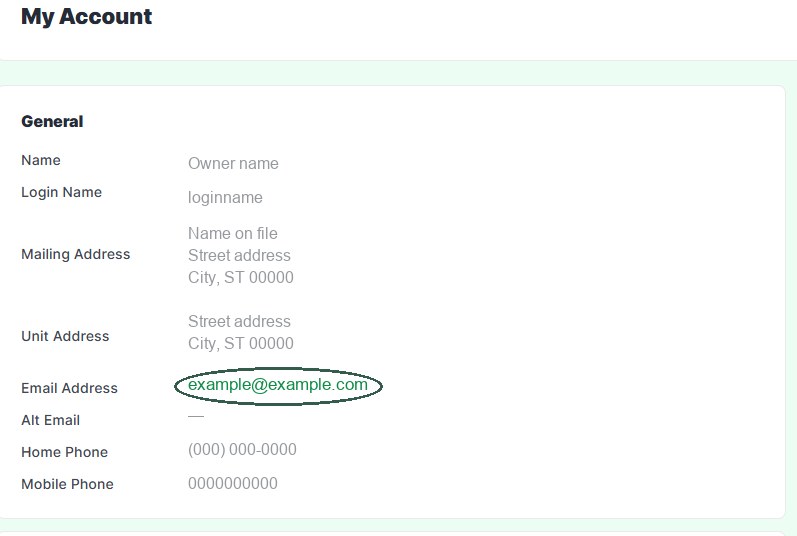
You can also look it up where Alamo Management Group (AMG), the HOA management company, keeps the property record: thecanyonspropertyownersassociation.eunify.com/MyAccountView. Look for Email Address.
Upcoming
Upcoming is the calendar. Each event has a title, a time, and a place. Times are in Central Time. Tap the location pin to open Maps. Tap Add to Calendar to save it on your phone.
A neighborhood event has no club name. A club event shows the club name, and only members of that club see it.
Some events have a small chip, Questions or RSVP. A check mark means you have already answered. Tap the chip, or More, and the phone opens one page. If the event has its own website link, that is the page. If it does not, the chip opens the question form or the RSVP, already signed in. On the resident website, the chip itself opens the form, and More is a separate link when the event has one.
Browse all clubs and events sits at the bottom of Upcoming. It opens the members social page, already signed in.
Alerts
An alert is a short notice. It can show on the lock screen, and it stays in Alerts for two weeks.
The first time you open the app, it asks for notifications. Turn them on if you want a lock-screen notice when the board needs to reach everyone quickly — for example, a closed gate, or weather that affects the gates. The app also asks for Persistent banners, so a notice stays until it is dismissed. You can say not to ask again. You will also see notices from social clubs you belong to. A club notice shows the club name.
The time is on the notice. Details on the website appears when the notice has a link. Swipe left to remove one on this phone.

Directory
Directory lists only people who turned on sharing. Search by name or street. Sort by last name or first name. The list is grouped by letter.
Tap a person to open the iPhone contact card, with Message, Call, FaceTime, and Mail for whatever they shared. That card is on the phone, not on the resident website.
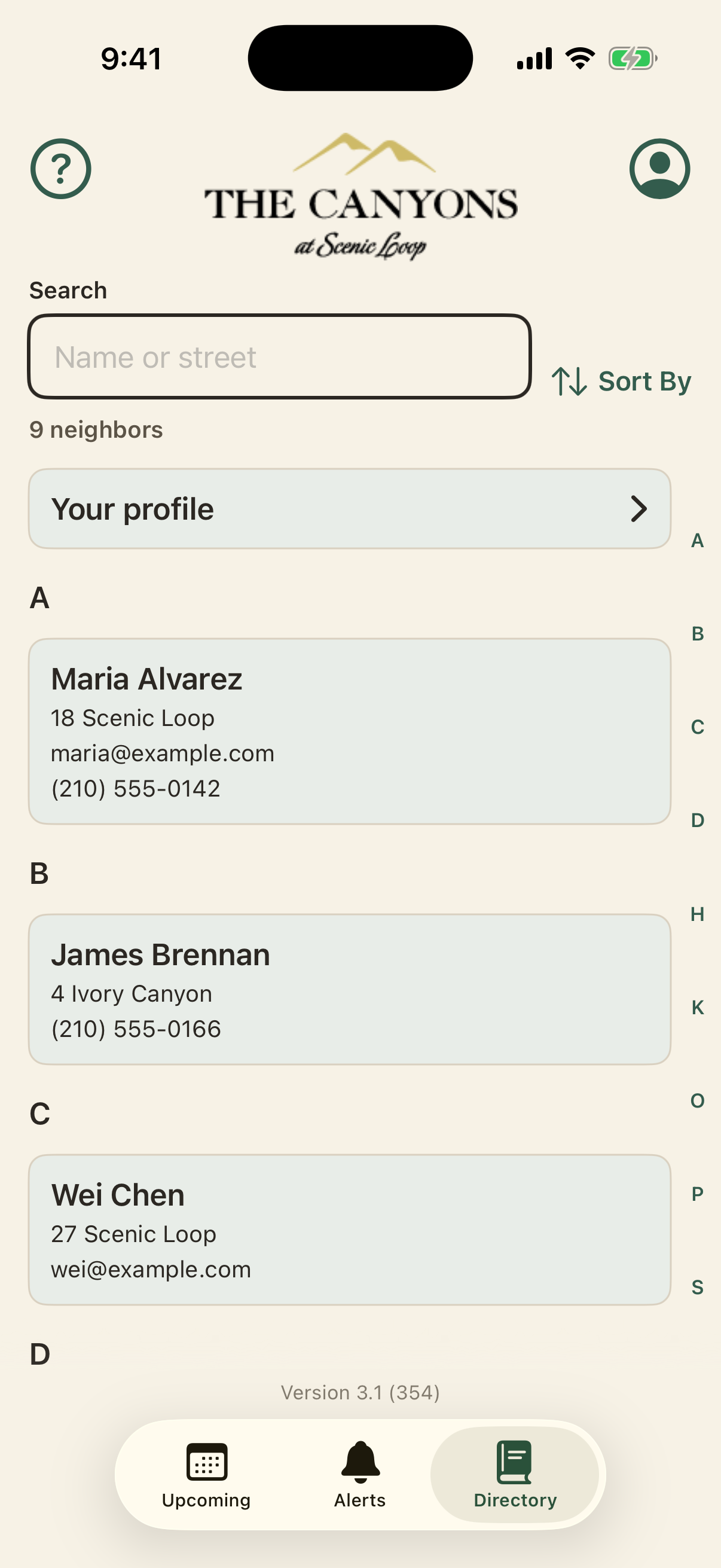
To be listed, tap the person icon. Enter a first and last name, add a phone if you want, and tap Save. Then turn on Share email, Share phone, or both. The sign-in email cannot be changed. The street comes from the owners list and cannot be changed.
Your household
Household is the row under those switches, and only when you are on the owners list. Open it from the person icon at the top of Upcoming or Directory.

Each added person signs in with their own email, on their own phone. They see neighborhood events and alerts. If they are in a club, they see that club. They can also lead a club.

Tap the plus button. Enter a first name, a last name, and an email. Phone is optional. Tap Add. They get an email telling them to download the app and sign in with that address.
An owner can add three other people. That is four in the household, including the owner.
Tap a name to change the name or phone, then tap Save. The email and the street cannot be changed. To use a different email, remove them and add them again. Remove also takes them off every club, and that email can no longer sign in. The name, phone, and Save screen is not in the picture above.
Guide for the 3.1 app. The pictures are from the 3.1 phone.