


Board members of the Property Owners Association use The Canyons app to reach the whole neighborhood. That is urgent notices on every phone, and events on everyone’s calendar.
The Admin tab is on the phone only when that email is on the Admins list. Signing in as an owner is not enough. The desk is:
access.thecanyonsatscenicloop.com
Signing in there does not put Admin on the phone. On the desk, open Admins and add the email they use in the app.
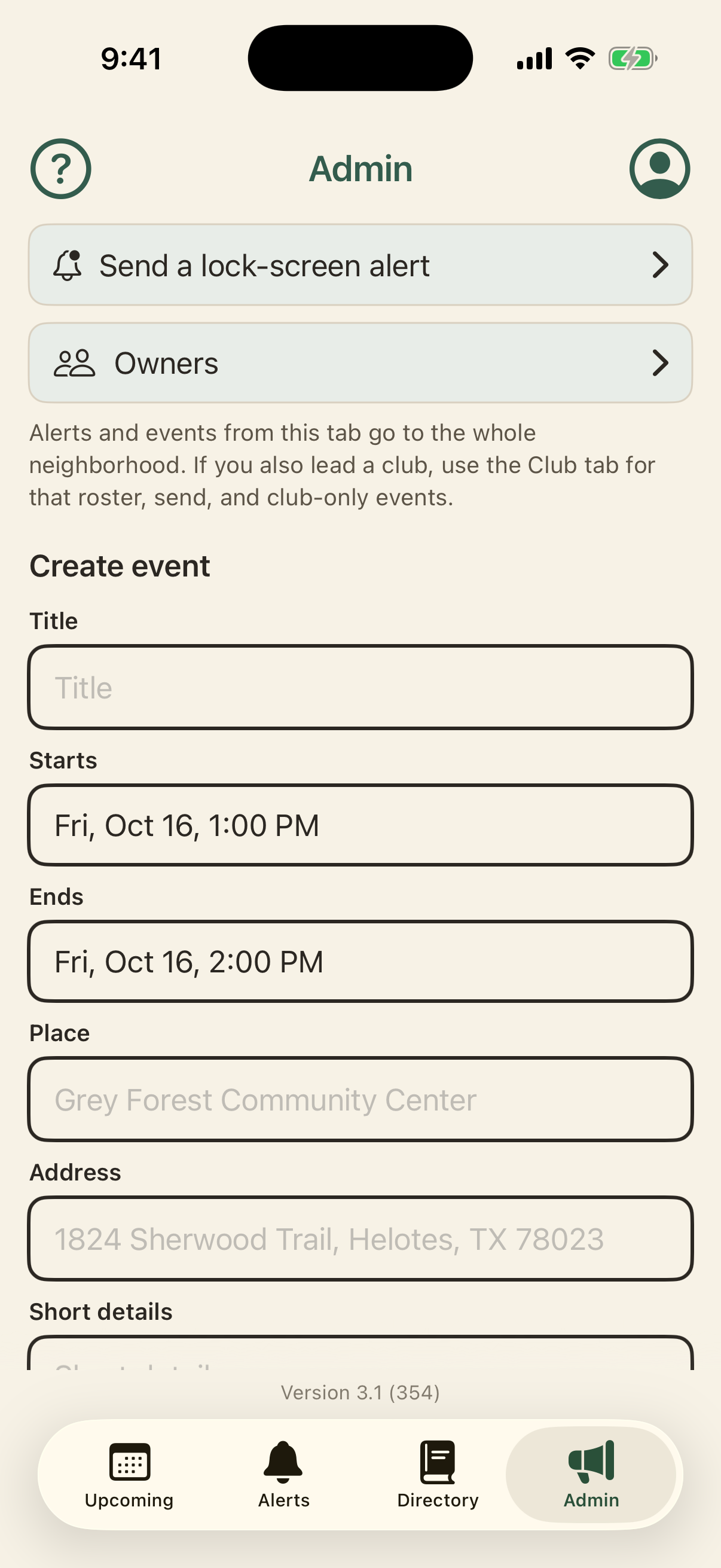
On the phone, top to bottom: Send a lock-screen alert, Owners, Create event, Events. A line on that screen says the same work can be done in a browser.
On the desk, the tabs are Events, Send alert, Owners, Roster, Clubs, Manage Clubs, and Admins.
Clubs are separate
Social clubs — bunco, book club, and the rest — are run by neighbors. They are not sponsored by the board or the management company. A club leader uses the Club tab, or leaders.thecanyonsatscenicloop.com. From Admin, you reach the whole neighborhood. From Club, you reach that club only.
What you can do
- Send a short notice that appears on every phone.
- Put a neighborhood gathering on the calendar.
- Add or remove an owner so they can sign in to the app.
- Create a social club and name a club leader, from the website.
- Give another person the Admin tab on their iPhone, from the website.
What this is not
It is not email, and it is not a chat. It does not replace the neighborhood website. A club’s own notices and gatherings are not sent from Admin. The current list of social clubs is at thecanyonsatscenicloop.com/social.
On the phone and on the website
The Admin tab can send an alert, add a neighborhood event, and search or add one owner. Use the desk in a browser when you need the full owners list, a new club, or another Admin.
If you also lead a club, you will see Club in the tab bar as well. Use Club for that roster. Use Admin for the neighborhood. A club leader uses the Club tab or the leaders website. Admin reaches the whole neighborhood.
Sign in
On the iPhone
Open The Canyons app. Enter the email Alamo Management Group (AMG), the HOA management company, has on file for your property, or the email that was added under Household. Tap Email me a code. The app emails a six-digit code. Enter that code, then tap Verify code.
You will see Admin at the bottom of the screen only if your email is also on the Admins list. Signing in as an owner is not enough by itself. Verify code is not in the Admin picture above.
On the website
Open access.thecanyonsatscenicloop.com. Sign in with the email that was given access to the website.
Signing in to the website does not put Admin on your iPhone. That is a separate list. On the website, open Admins and add the email you use in the app.
If the code or sign-in message does not arrive, check the spam folder. Times in the app and on the website are Central Time.
Send an alert
An alert is a short notice for the whole neighborhood. It can appear on the lock screen, and it stays in the Alerts tab for two weeks, then it drops off by itself.
Use it when everyone needs to know right now — a closed gate, a water outage, a meeting tonight. A reminder that only one club cares about belongs on that club, not here. People can mute notices if they feel they get too many.
On the phone, tap Send a lock-screen alert. Type a title and a line of text. You may add a link. Tap Send to every phone, then confirm. The title, the line, the link, and Send to every phone are not in the picture above.
On the desk, open Send alert. Audience is Everyone.
It stays in Alerts for two weeks. Neighbors can swipe it away. If it should come down early, remove it from On phones now on the desk. A notice that only one club needs belongs on that club.
Neighborhood events
Everyone in the neighborhood will see these on Upcoming. This is not a club event.
On the phone, fill in Title, Starts, Ends, Place, Address, and Short details, then tap Save event. Address is required. Place is the building name. The picture above shows those fields through the start of Short details. Save event is below that frame.
On the desk, Events uses the same fields and can also store a website link. Remove takes the event off. Neighbors see the change the next time the app refreshes.
Club events are created by that club’s leader, or from Clubs on the desk. They stay off the public website list.
The event form does not attach a question form or an RSVP. The desk event list does not show one. A club leader sees Open the questions or Open the RSVP on the leaders website when one is attached.
Owners
This is who may request a sign-in code. It starts from the email Alamo Management Group (AMG), the HOA management company, has for the property. Names and phones are collected in the app.
On the phone, search by name, street, or email, and add one email at a time. The phone does not show the whole list. Owners on the Admin picture above is the row. The search is not in that picture.
On the desk, search, add an email and a street, change a street, or remove one owner.
Each email may appear once. If that person is already on someone else’s Household, remove them there first. That also takes them off clubs. Then add them here as an owner.
Removing an owner removes that owner and the people they added. Other owners at the same street stay.
Roster
Roster is the whole neighborhood in one table, on the desk. Each club is a column of checkboxes. Check to add someone. Uncheck to take them off. Sort by first name, last name, or street.
Clubs, from the website
A neighbor who wants a new club does not need a separate sign-in. You create it on the website.
Manage Clubs creates the club and can delete it. Type the club name, and a short label with no spaces, such as wine-club. Then tap Create club.
Clubs is where you open that club: add members, name a club leader, send a notice to that club only, and put that club’s gatherings on the calendar. Search the neighborhood, then add. They need to be an owner or a household member already.
A club leader gets the Club tab on their iPhone. Until you name a club leader, the club can exist, but no neighbor has that tab.
Deleting a club removes the club, its club leaders, its events, and its alerts. People stay in the neighborhood. Type the club name to confirm.
Admins, from the website
Open Admins. Add the email that person uses in the app. After they sign in on their iPhone, they will see the Admin tab and can send neighborhood alerts and events from the phone.
Taking an email off this list removes the Admin tab. They can still use the app as a neighbor if they are an owner or a household member.
Guide for the 3.1 app.