


If you run a social club — bunco, book club, Bible study, a dinner group — this guide is for you. Clubs are run by neighbors, not the board or the management company, and only your members see what you post. The current list is at thecanyonsatscenicloop.com/social.
There is a website where you notify your members, put gatherings on the calendar, and keep the member list current:
leaders.thecanyonsatscenicloop.com
These same jobs are also on the phone, on the Club tab. The phone and the website use the same jobs and a different order.
On the phone, top to bottom: Events, Create event, Send alert, Add members, Find members, Leads, Add leads. One club opens directly. More than one club shows a list first.
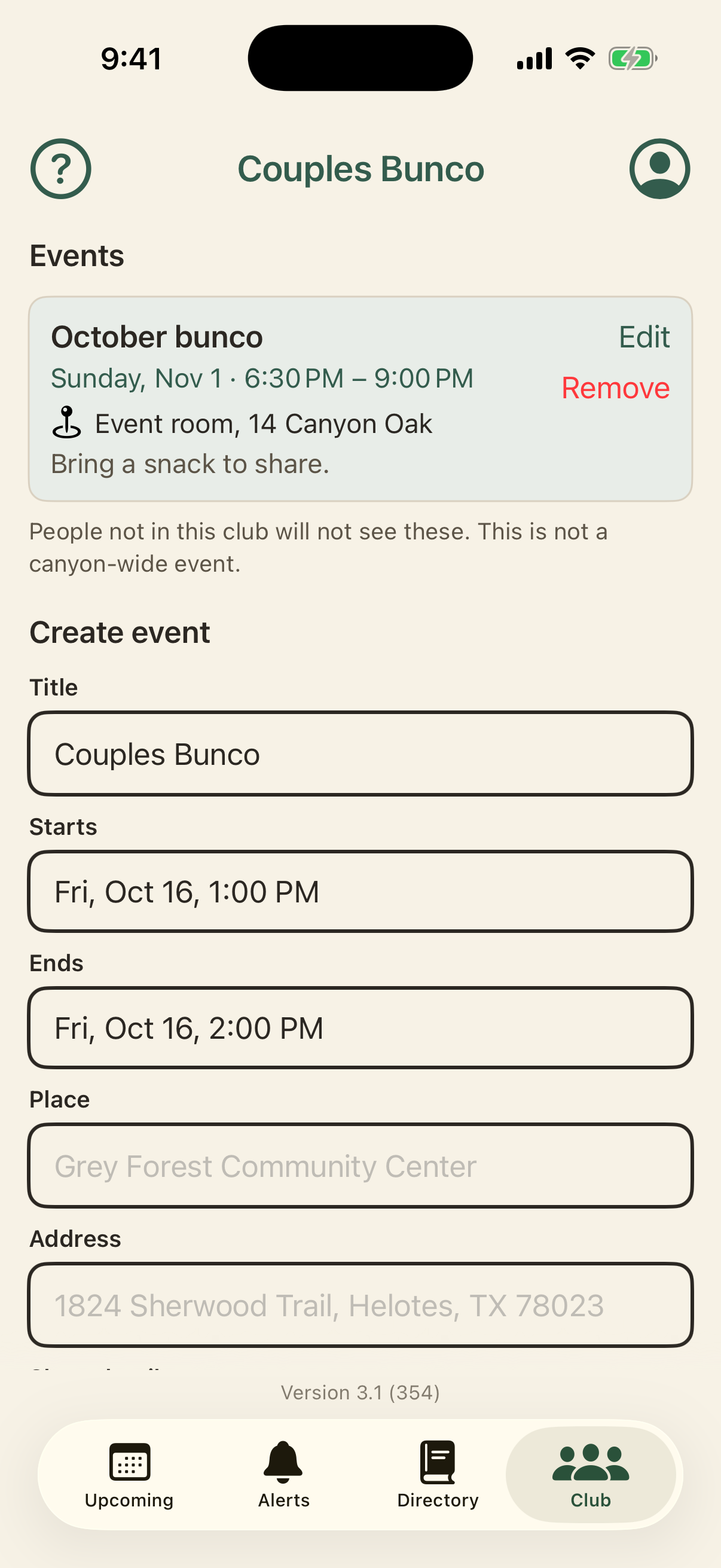
On the website, top to bottom: Create event, Scheduled, Send alert, On phones now, Leads, Find members, Add members. One club opens directly. More than one club shows Your clubs first.
What you can do there
- Send a short notice to everyone in your club. It appears on their phone.
- Add an event: a gathering with a date, a time, and a place, so people can save it to their own calendar.
- Add or remove members. The member list is the people who belong to your club.
- Add or remove other club leaders. A club leader is someone else who can run the club with you.
What it will not do
It does not notify the whole neighborhood. That is for an administrator. It is not a chat. A club leader cannot start, rename, or close a club from the phone or from this website. An administrator does that.
How to use it
Sign in
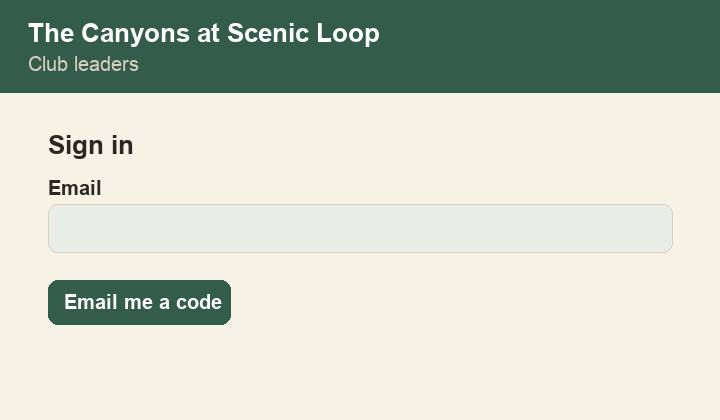
If you are a club leader, open leaders.thecanyonsatscenicloop.com. Enter the email address you use for the neighborhood. Tap Email me a code.
The site then emails you a six-digit code to confirm the email address is yours. Enter the code on the page.
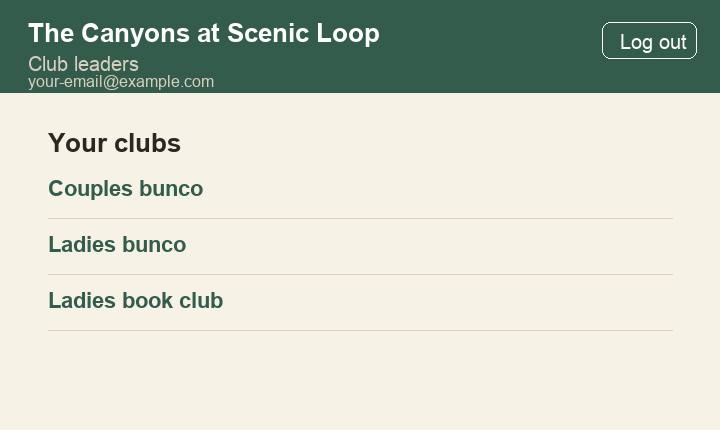
If you lead one club, that club opens. If you lead more than one club, you will see a list of the clubs you lead. Tap the club you want.
Add a member
A member is someone in your club. They will see your events and your notices. They cannot run the club unless you also make them a club leader.
Go to Add members. Enter a name, an email, or a street. When their name appears, tap Add.

A club leader can add only someone who is already an owner or a household member. If they are not, they may need Alamo Management Group (AMG), the HOA management company, to add an email for the property.
Remove a member
Go to Find members. Enter a name, or tap Show everyone. Tap Remove next to the person you want to take off the club.

Remove takes the person off this club only. They stay in the neighborhood.
Add a club leader
A club leader can do everything on this page for the club: members, events, and notices. Most clubs work well with two or three club leaders.
Go to Leads. Search by name, email, or street, then tap Add. On the phone that search is Add leads.

They can then use this website as well.
Remove a club leader
Remove sits next to the other leaders. A leader cannot remove themselves. Removing a leader leaves them as a member. They can no longer run the club.
Notify the club
An alert is a short notice on your members’ phones. Think of it as ringing the bell for the club. Use it when people need to know something now. A reminder that tonight is at a neighbor’s house is fine. So is a last-minute change, or a request for a substitute.
Use it carefully. If it is used too often, people will mute the app, and then the alerts will not work when they matter.
Example — Couples Bunco: We need a sub couple for tonight. Text me if you can fill in.
Go to Send alert. Write a short title. Write one or two sentences. Tap Send alert, then confirm.
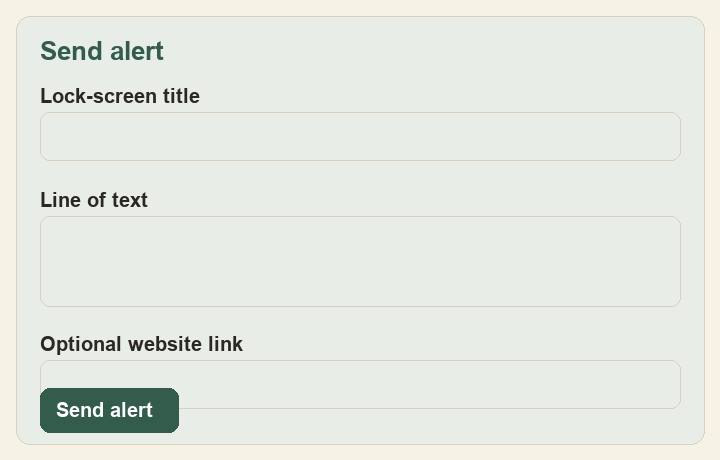
An alert that was sent cannot be edited. Send a new one. On the website, On phones now lists what was sent to this club.
Add an event
An event is a gathering on the club calendar. Only members of the club will see it. Use it for bunco night, a meeting, a walk, or anything else with a date. Members can add it to their own calendar.
Go to Create event. Title, start, and address are required. End, place, and a short note are optional. Times are in Central Time. The title starts as the club name and can be changed. Tap Save event.
The phone picture above shows Title, Starts, Ends, Place, and Address. Save event and the short note are below that frame.
Saved events are under Events on the phone and under Scheduled on the website. Edit changes one. Remove takes it off. If the change is soon, also send an alert so people do not arrive at the old time or place.
Questions and an RSVP are not fields on Create event. When one has been attached to the event, Scheduled on the leaders website shows Open the questions or Open the RSVP. That opens the form on the app site. Members see a Questions or RSVP chip on the event in the app. A check mark means they have answered.
Guide for the 3.1 app.